The App You Forgot About
You installed a flashlight app three years ago. You haven't opened it since. It still has access to your location — 24 hours a day, in the background, every time you move.
This isn't paranoia. It's the default state of most phones.
Every app you've ever granted location permission to is a potential data point in a tracking profile. Some are legitimate. Some are forgotten. Some are actively feeding your location to third-party ad networks right now.
This lesson teaches you to see exactly what's happening — and how to read the evidence.
Everything in this lesson is about auditing your own device. These techniques are for understanding and securing your phone — not someone else's.
We provide both beginner-friendly UI methods and advanced ADB commands. Choose your comfort level — both achieve the same goal.
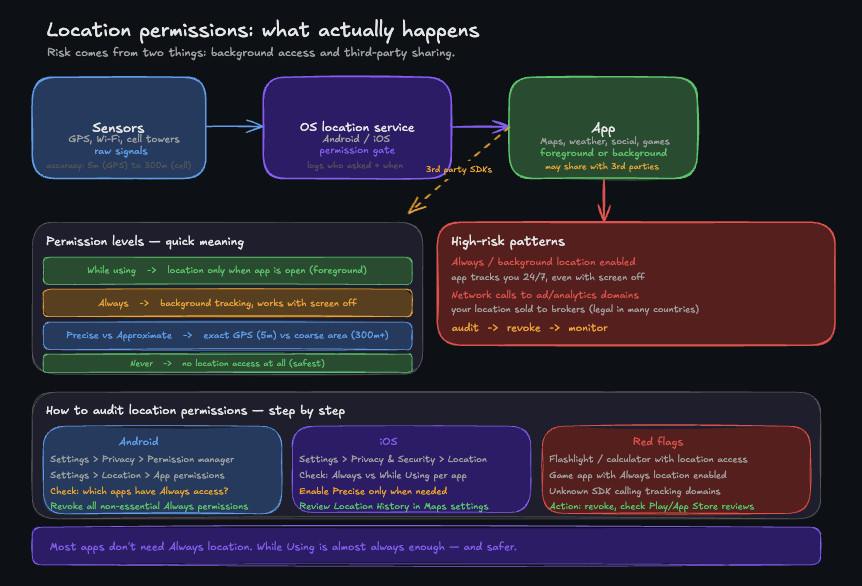
Location risk is mostly about background access and where apps send the data.
Part 1 — Android: Choose Your Audit Method
Method A: The Simple UI Audit (No Computer)
# On your Android device:
# Settings → Privacy → Permission manager → Location

# Review each app with location access:

# - "Allowed all the time" = Background tracking

# - "Allowed only while in use" = Foreground only

# - "Ask every time" = Prompt required

# - "Not allowed" = No access
Any app you don't recognize or haven't used in months with "Allowed all the time" should be changed to "Not allowed" or uninstalled.
Method B: The ADB Technical Audit (Advanced)
ADB (Android Debug Bridge) is a command-line tool that gives you direct access to your Android device. It's how security researchers — and you — can see what's really happening under the hood.
Step 1 — Enable ADB on your Android phone
# On your Android device:
# Settings → About Phone → tap "Build Number" 7 times
# → Developer Options unlocked

# Then: Settings → Developer Options → enable "USB Debugging"

# Connect your phone via USB
Step 2 — Verify the connection
# On your computer (macOS/Linux)
adb devicesIf you see your device listed, ADB is working. If you see "unauthorized", check your phone — it's asking you to accept the connection.
Step 3 — List every app with location permission
# List all apps that have been granted ACCESS_FINE_LOCATION
adb shell pm list permissions -g | grep -i location

# Better: dump the full permission grant for location

adb shell dumpsys package | grep -A2 "ACCESS_FINE_LOCATION" | grep "granted=true"Every line is an app with fine location access. For each one, ask: do I know why this app needs my location?
Step 4 — Find apps running location in the background
Background location is the dangerous one — these apps track you even when you're not using them.
# Apps granted ACCESS_BACKGROUND_LOCATION (Android 10+)
adb shell dumpsys package | grep -B5 "ACCESS_BACKGROUND_LOCATION" | grep "package="ACCESS_BACKGROUND_LOCATION requires an explicit grant from the user on Android 10+. If an app has it that you don't recognize — that's a red flag.
Step 5 — Check recent location access in real time
# See which apps accessed location in the last 24h
adb shell dumpsys location | grep -A3 "Last Location"Part 2 — iOS: The Privacy Report
iOS doesn't expose ADB, but Apple built a privacy audit tool directly into the system.
Enable App Privacy Report
# On your iPhone:
# Settings → Privacy & Security → App Privacy Report → Turn On App Privacy Report

# Wait 24–48 hours, then check:

# Settings → Privacy & Security → App Privacy Report
The App Privacy Report shows every app that accessed your location, camera, microphone, contacts, or network — with timestamps. No commands needed.
What to look for in the report
- Location access at 3am → the app ran a background task while your screen was off
- Apps contacting ad-network domains after accessing location → they're selling your data
- Apps you haven't opened in months with recent sensor access → they're running silently
iOS location permission audit (no ADB needed)
# Settings → Privacy & Security → Location Services

# For each app, check the setting:

# "Never" → no access

# "Ask Next Time" → will ask when you open it

# "While Using" → only when app is open

# "Always" → background tracking enabled ← check these
Any app set to Always that you don't consciously use for navigation or tracking should be changed to While Using or Never.
Part 3 — Corporate Phones: MDM Considerations
If this is a work phone, your employer may be tracking you legally through Mobile Device Management (MDM).
# Android: Check for work profile
# Settings → Accounts → Look for "Work profile"

# iOS: Check for MDM

# Settings → General → VPN & Device Management

# Common corporate tracking apps to look for:

# - MobileIron

# - AirWatch

# - Intune

# - Jamf

# - Kaseya
If you see a work profile or MDM you don't recognize, contact your IT department. Corporate tracking is legal but you have the right to know what's being monitored.
Part 4 — Reading the Evidence
Here's how to interpret what you find:
| What you see | What it means | Action |
|---|---|---|
| Unknown app with background location | Possible tracker or forgotten install | Revoke permission immediately |
| Ad SDK package name (e.g. com.adnetwork.*) | Third-party ad library tracking you | Revoke or uninstall the host app |
| App accessed location while screen was off | Background data collection | Set to 'While Using' or revoke |
| App you uninstalled still appearing in logs | Residual data — normal | No action needed |
| Same app accessing location every hour | Geofencing or aggressive tracking | Revoke and review app permissions |
| Work profile apps tracking location | Corporate monitoring | Review with IT, may be required |
Part 5 — Revoke What You Don't Trust
Android (UI Method):
# Settings → Apps → [App] → Permissions → Location → Deny

# Settings → Privacy → Permission manager → Location → [App] → Deny
Android (ADB Method):
# Revoke location permission from a specific app
adb shell pm revoke com.someflashlightapp android.permission.ACCESS_FINE_LOCATION
adb shell pm revoke com.someflashlightapp android.permission.ACCESS_BACKGROUND_LOCATIONiOS: Settings → Privacy & Security → Location Services → [App] → Never
Part 6 — Cloud Backup Privacy Check
Your phone might be tracked through cloud backups, not just apps.
# Android: Check Google Location History
# Open Google Maps → Menu → Timeline → Activity controls

# iOS: Check significant locations

# Settings → Privacy & Security → Location Services → System Services → Significant Locations
These features track your location even if individual apps don't. Disable if you want maximum privacy.
Summary
You now know how to:
- Use both UI and ADB methods to audit location permissions on Android
- Identify apps running background location silently
- Use iOS App Privacy Report to see real-time sensor access
- Check for corporate MDM tracking
- Review cloud-based location tracking
- Read the evidence and revoke permissions you don't trust
A clean phone is one where every location-enabled app has a reason to be there — one you consciously chose.
In the next lesson, we go deeper: what if an